JnK Plugins
Broken Link Checker False Positives (403s Explained)
You run a broken link scan, get a list of “broken” links, click the first one, and it opens fine. Same with the second. And the third. One user put it plainly in a Broken Link Checker support thread this year: “A handful of links are flagged as broken even though they open fine when I click them manually.”
That’s a false positive, and it’s one of the most common complaints about link checkers in general. The good news: the link usually really is fine. The less good news: you can’t just ignore the whole report, because some of those flags will be real.
So here’s why it happens, how to sort the real ones from the noise in a few minutes, and what to change so the report stops crying wolf.
Why a link that works gets flagged as broken
The short version: a link checker is not a browser, and a lot of websites can tell.
When you click a link, your browser sends a full request with cookies, a normal user agent, JavaScript support, and it comes from your home or office IP. When a checker tests a link, it usually sends a quick automated request from a server. Plenty of sites treat those two very differently.
Firewalls and bot protection say no
Cloudflare, Sucuri, Wordfence, host-level firewalls and CDNs all try to block bots. A link checker looks like a bot because it is one. The site answers with 403 Forbidden, and the checker reports the link as broken. Your browser, meanwhile, sails through.
WPMU DEV support said as much in that same thread: a firewall on your own site or on the target site can block the scan, and “the plugin may indicate that the connection was forbidden with the error 403.”
HEAD requests get refused
Many checkers send a HEAD request first. It asks for the headers only, which is cheap and fast. Some servers don’t support HEAD properly and answer 405 Method Not Allowed, or even a 404, while the same URL loads perfectly with a normal GET.
Rate limits
If your posts link to the same site 40 times and the checker hits it 40 times in a minute, that site may start answering 429 Too Many Requests. The first few links pass, the rest “break”.
Cloud scanners come from data-centre IPs
A scan that runs on someone else’s servers comes from a data-centre IP range. Some firewalls block those ranges outright, and some sites geo-block whole countries. A link can be fine from your laptop and blocked from the scanner’s location.
Pages that need cookies or JavaScript
Some pages show a challenge screen, a cookie wall or a login redirect before the real content. A browser gets past it. A simple checker sees the challenge and gives up, or gets a 5xx error.
None of these mean the link is dead.
How to triage the report in a few minutes
Don’t fix anything yet. First, find out which kind of “broken” you’re looking at.
1. Look at the status code
This is the single most useful column in the report. Roughly:
| Code | What it usually means | Action |
|---|---|---|
| 404, 410 | The page really is gone | Fix or remove the link |
| 403 | The checker was blocked | Check in a browser first |
| 405 | The server refused a HEAD request | Recheck with GET |
| 429 | Rate limited | Recheck later |
| 5xx, timeout | Server trouble, maybe temporary | Recheck tomorrow |
| 401 | Login required | Usually fine if the link is meant for members |
Only the first row is a link you should touch today. Everything else is “didn’t let me in” until proven otherwise.
2. Open it in a private window
A private or incognito window drops your cookies and logged-in state. If the page loads there, a visitor can see it. If it asks you to log in, that’s the 401 case.
3. Compare HEAD and GET with curl
If you’re comfortable with a terminal, this tells you in ten seconds whether it’s a HEAD problem or a bot block:
curl -I https://example.com/some-page/
curl -s -o /dev/null -w "%{http_code}\n" https://example.com/some-page/
curl -s -o /dev/null -w "%{http_code}\n" -A "Mozilla/5.0 (Windows NT 10.0; Win64; x64)" https://example.com/some-page/
The first line is a HEAD request. The second is a GET. The third is a GET pretending to be a browser. If HEAD gives 405 and GET gives 200, the server just doesn’t like HEAD. If the plain GET gives 403 and the browser one gives 200, the site is blocking bots by user agent. If all three give 404, the link is genuinely dead.
What to do about it
Dismiss or ignore the known false positives
Most checkers let you dismiss a link so it stops showing up. Broken Link Checker has had a Dismiss action (single and bulk) for years, plus an unignore if you change your mind. For a site that always answers bots with 403 but works for people, dismiss it and move on.
The catch: a dismissed link that dies for real next year won’t be flagged.
Recheck later instead of trusting one scan
429s and 5xx errors are often gone the next day. Broken Link Checker has a Recheck action for single links and a bulk recheck. Give it a day before you act on anything that isn’t a 404 or 410.
Allowlist the scanner on your own site
If the false positives are links to your own pages, the blocker is probably your own firewall. You control that. Broken Link Checker currently offers two engines, a Cloud-Based Engine that runs on WPMU DEV’s servers and a Local Engine that runs on your own server. For the cloud one, WPMU DEV keeps troubleshooting notes on what to allow through. If you use a security plugin or Cloudflare, the setting usually lives under something like allowed IPs, firewall rules or bot exceptions.
You can’t do this for other people’s sites, obviously. Their firewall, their rules.
And be a bit careful. Loosening bot protection to make one report quieter is a trade. We wrote about the wider picture in AI bots crawling your WordPress site, and the same logic applies: allow the one thing you trust, not whole ranges.
Try the other scan mode
Since the two engines send requests from different places, switching can clear up IP-based blocks. Users report trouble in both directions, though. One thread from this year is titled “Local Link Checking Not Working. Only The Cloud Link Checking Works!“, and in it the cloud scan had flagged around 200 links, mostly 403s that worked in a browser. So treat switching as an experiment, not a cure.
Don’t bulk-unlink on 403s
This is the one that really hurts. Someone gets a list of 200 “broken” links, hits the bulk unlink button, and strips out a pile of perfectly good references, some of them to their own pages. Only bulk-remove links that returned 404 or 410, and only after a quick spot check. Everything else gets a human look.
If you want the broader routine for finding and repairing dead links (redirects, replacements, archive copies), our guide to finding and fixing broken links in WordPress covers it.
Checking your own internal links without the noise
Here’s how it works. Links to posts on your own site are judged first from the WordPress database: is the target a draft, trashed, or a post that’s gone? No HTTP request at all. Whatever the database can’t answer gets a HEAD request back to your own site, and if that gets no answer, a 5xx, 401, 403, 405 or 429, it retries with a GET. And 401, 403, 429, 5xx and no answer are reported as “did not answer”, never as missing. Only real 4xx errors like 404 count as broken. Requests go only to your own site, and nothing is sent to an outside service.
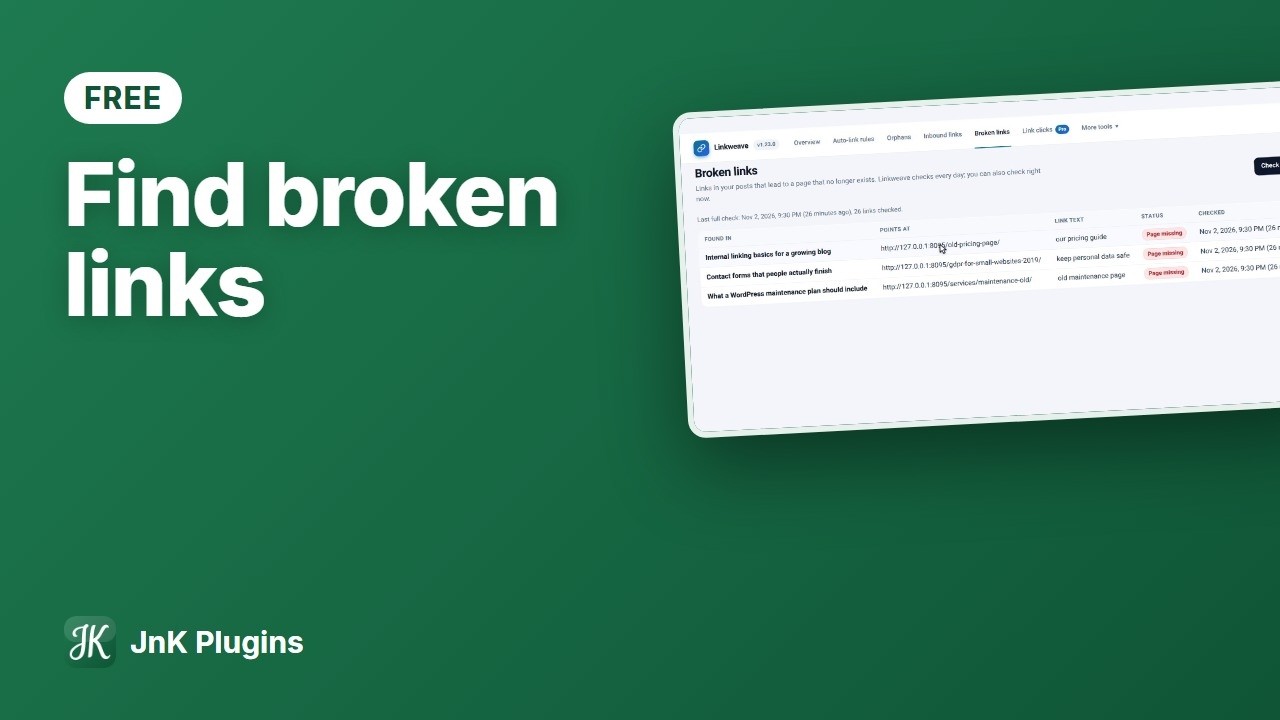
The scan runs daily, and there’s a “Check all links now” button on the Broken links screen. The report shows which post the link is in, where it points, its link text, and whether the page is missing or did not answer. Finding them is free; fixing them in bulk is in Pro.
Now the honest limit. The free version does not check links to other sites. It is not a full Broken Link Checker replacement, and if your problem is outbound links to other people’s sites, you still need something else for those. If you want to try it for your internal links, it’s a free download from our site. For more on auditing internal links specifically, see our post on internal link checkers for WordPress.
A quick routine that keeps the report honest
- Sort the report by status code.
- Fix or remove the 404s and 410s.
- Open the 403s in a private window. Dismiss the ones that load.
- Leave 429s and 5xx alone for a day, then recheck.
- If many of the 403s point at your own domain, look at your own firewall first.
- Every few months, glance at your dismissed list.
Frequently asked questions
Why does my broken link checker say a link is broken when it opens fine?
Usually because the target site blocked the checker, not because the page is gone. Firewalls, CDNs and bot protection often answer automated requests with 403, refuse HEAD requests with 405, or rate limit with 429. A 404 or 410 is the code that means a page really is missing.
Should I remove links that return a 403 error?
No, not without checking them first. A 403 means the server refused the request, which often happens to bots and scanners while real visitors get through. Open the link in a private browser window. If it loads, dismiss it in your checker instead of unlinking it.
How do I stop false positives for links to my own site?
Your own firewall or security plugin is the likely cause, so allow the scanner through there, or use a checker that tests your internal links from your own server. Then recheck. If links to your own pages still show 403, compare a HEAD and a GET request with curl to see which one is being blocked.