JnK Plugins
The WordPress MCP Adapter: What It Lets AI Do on Your Site (We Tested It)
Last updated 18 October 2026. Tested on WordPress 7.1.3 with MCP Adapter 0.7.1 and the AI plugin 1.4.0, on a fresh local site.
On 2 October, WordPress’ own AI team put the MCP Adapter plugin into the WordPress.org directory. It’s the official way to let AI assistants like Claude or Cursor talk to your WordPress site. Two weeks later it already shows 50,000+ active installs.
The question most people have is simple: if I install this, what can an AI actually do on my site? We set up a clean WordPress site, installed it, connected as different users and called every tool it offers. Short answer: on its own, very little, and that’s on purpose.
What MCP is, in one paragraph
MCP (Model Context Protocol) is an open standard for connecting AI assistants to other software. Think of it like a USB port for AI. Instead of every AI app needing its own custom WordPress integration, your site offers one standard “port”, and any app that speaks MCP can plug in, see what it’s allowed to do, and do it.
The three pieces, in plain words
- Abilities API (in WordPress core since 6.9). A list of things your site can do, each with a name, a description and a permission check. “Get site info” is an ability. “Create a draft post” could be one. WordPress registers a few, and plugins can add their own.
- AI Client and Connectors (in core since 7.0). These let WordPress itself call AI providers. They’re a separate thing and not needed for MCP.
- MCP Adapter (this plugin). It takes the abilities on your site and offers them over MCP. It adds no AI features of its own. As its own FAQ puts it, it is “the server and transport layer”.
So MCP Adapter is the port. What comes through the port depends on which abilities your site has, and which of those are marked public.
What we found on a plain WordPress site
After activating the plugin, an AI client connecting to the site sees exactly three tools:
- Discover abilities: lists what the site offers.
- Get ability info: describes one ability and what input it takes.
- Execute ability: runs one.
On our fresh site, “discover” returned three abilities, all from WordPress core and all read-only:
core/get-site-info         site name, URL, language, version, admin email
core/get-user-info         profile of the user the AI is connected as
core/get-environment-info  PHP version, database version, environment type
That’s it. No reading posts, no writing posts, no changing settings. An AI connected to a stock site can tell you what PHP version you run and not much more.
Who can do what: we tested three users
MCP Adapter doesn’t give the AI its own powers. It logs in as a normal WordPress user and gets that user’s permissions. We connected as an Administrator, an Editor and a Subscriber:
| Ability | Administrator | Editor | Subscriber |
|---|---|---|---|
| Get site info | Yes | Permission denied | Permission denied |
| Get environment info | Yes | Permission denied | Permission denied |
| Get own user info | Yes | Yes | Yes |
| Not logged in at all | Blocked with a 401 error before anything runs | ||
Two of the three core abilities need the manage_options capability, which normally only Administrators have. One detail is worth knowing: when we connected as an Administrator, “get site info” also returned the site’s admin email address. It’s harmless on its own, but it’s a good example of why you shouldn’t connect an AI as an admin unless you have to.
What happens when you add a plugin that registers abilities
To see how this grows, we installed WordPress’ official AI plugin (1.4.0) and turned on its “Custom Abilities” experiment. That registered eight more abilities on the site, including ones to query posts, users and settings.
But only two of them showed up for the AI: “get post details” and “get post terms”. The others (core/content-query, core/users-query, core/settings-get) were registered but not marked public for MCP, so when we asked to run them, MCP Adapter answered that they don’t exist on the site.
This is the important part. Installing a plugin that registers abilities doesn’t automatically hand them to an AI. The plugin’s developer has to mark each one public. And even then the permission check still runs. Our Editor could read a post through “get post details”. Our Subscriber got “Permission denied”.
How to connect an AI assistant
The plugin’s site owner guide covers this well. Here’s the short version.
Step 1: Make a separate user and an Application Password
Create a user just for the AI, with the lowest role that can do the job (Editor, not Administrator). Log in as that user, go to Users > Profile, scroll to Application Passwords, type a name like “Claude on my laptop” and click the add button. Copy the password straight away, because WordPress only shows it once.
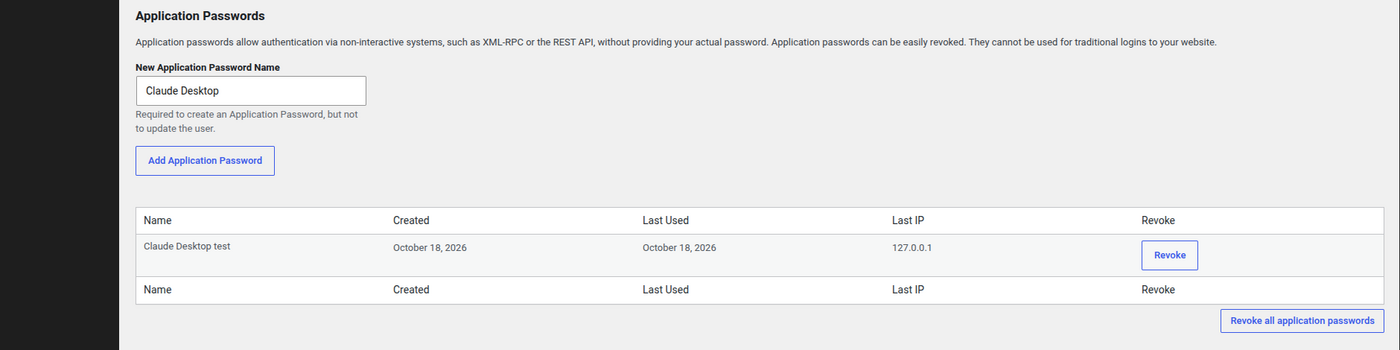
Application Passwords only show up on sites served over HTTPS (local development sites are the exception). If the section is missing, a security plugin or your host may have turned it off.
Step 2: Add your site to the AI app
Your site’s MCP address is your site URL plus /wp-json/mcp/mcp-adapter-default-server. For desktop apps like Claude Desktop or Cursor, the guide uses a small helper that runs on your computer through npx, so you’ll need Node.js installed. You add an entry like this to the app’s MCP config file:
{
  "mcpServers": {
    "my-wordpress-site": {
      "command": "npx",
      "args": ["-y", "@automattic/mcp-wordpress-remote@latest"],
      "env": {
        "WP_API_URL": "https://example.com/wp-json/mcp/mcp-adapter-default-server",
        "WP_API_USERNAME": "your-ai-user",
        "WP_API_PASSWORD": "xxxx xxxx xxxx xxxx xxxx xxxx"
      }
    }
  }
}
Tools that accept a URL and a header directly, like Claude Code, can skip the helper and send the username and Application Password as a Basic auth header.
Step 3: Test it
Start a new chat and ask the assistant to list the WordPress abilities it can use on your site. If it answers with a list, even a short one, the connection works.
What about ChatGPT or claude.ai in the browser?
Not directly, for now. The web versions of ChatGPT and Claude add connectors through an OAuth sign-in and have no field for an Application Password. WordPress doesn’t include an OAuth server and MCP Adapter doesn’t add one, so the guide says these apps “cannot connect to MCP Adapter on their own today”. You’d need a desktop app, or a separate plugin that adds OAuth to your site.
A short safety checklist
- Never connect as your admin account. Make a separate user with the lowest role that works.
- One Application Password per app and device. You can then revoke one without touching the others. The profile screen shows when each was last used.
- Revoke when you’re done experimenting. It takes one click and cuts the AI off immediately.
- Check what your plugins expose. Ask the assistant to list its abilities after you install anything new. The list will grow as more plugins add support, and there are a lot of new plugins: about one in four in the directory was added in the last year.
- Try write abilities on staging first. When abilities that create or change content arrive, they’ll change your live site just like a click in wp-admin does.
What’s coming next
Right now most of what you can reach is read-only, but that’s changing. The AI plugin 1.4.0 release post lists abilities being worked on for future versions, including creating, updating and deleting content, media, terms and users, and updating settings. It also mentions role and user access controls for developers. The team calls these “still exploratory”, so treat them as a direction rather than a date.
MCP Adapter itself is still labelled experimental, with the team aiming for a stable 1.0. It also stays a plugin rather than going into core for now. The AI team’s announcement explains that MCP itself is still changing too quickly for core’s slower, backwards-compatible release cycle. If you’re following where WordPress and AI are heading more broadly, our WordPress 7.2 preview covers what’s planned for December.
How we tested
We used a fresh WordPress 7.1.3 install on PHP 8.4 with only MCP Adapter 0.7.1 active, and connected over HTTP with Application Passwords for three test users (Administrator, Editor, Subscriber). We sent raw MCP requests (initialize, then tools/list and tools/call) instead of going through a chat app, so the results show exactly what the server allows. Then we added the AI plugin 1.4.0 with its Custom Abilities experiment on, repeated the calls, and checked each ability’s registration in WordPress to see which were marked public. We also confirmed the STDIO route (wp mcp-adapter serve) works for local sites with WP-CLI. Nothing here was tested on a live site.
Frequently asked questions
Is the WordPress MCP Adapter safe to install?
On its own it exposes very little. On a fresh site in our test, an AI could only read basic site, user and environment info, and two of those three need an Administrator. Logged-out requests are blocked. The AI always acts as the WordPress user you connect it as, so use a separate low-privilege user.
Can I connect ChatGPT to WordPress with MCP Adapter?
Not the web version, for now. ChatGPT and claude.ai in the browser connect through OAuth, which WordPress and MCP Adapter don’t provide. Desktop apps like Claude Desktop and Cursor can connect with an Application Password.
Why can’t the AI see my plugin’s features?
MCP Adapter only shows abilities that a plugin has registered and marked as public. If a plugin doesn’t support the Abilities API yet, or keeps its abilities private, an AI can’t reach them through MCP Adapter.