JnK Plugins
How to Find and Fix Orphaned Pages in WordPress
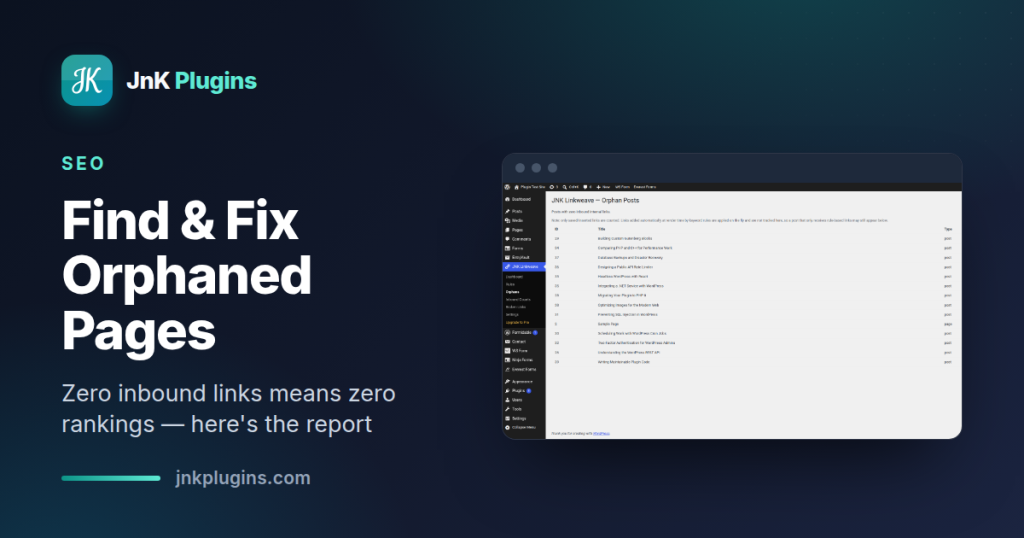
An orphaned page is a page on your site with zero internal links pointing at it. Nothing in your navigation, no link from a post, nothing in a sidebar — the only way anyone reaches it is by knowing the URL or finding it in search, which is precisely the thing it can’t do well while it’s orphaned.
It’s the room you built without cutting a door into the hallway. Google’s crawlers follow links, so a page with no inbound links gets discovered late (via your sitemap, if you’re lucky), gets crawled rarely, and receives no internal link equity from the rest of your site. Fixing orphans is one of the cheapest SEO wins available, because the content already exists — you’re just connecting it.
Step 1: Find the orphans
Beyond about fifty posts, finding these by hand stops being realistic. You need something that reads the whole link graph.
Option A: your SEO plugin
Yoast SEO Premium and Rank Math Pro both include an orphaned-content filter in the posts list, so if you’re already paying for one of them, check there first before installing anything else. They’ll tell you which posts are orphaned; fixing them is still a manual job in the editor.
Option B: a dedicated internal linking plugin
Disclosure: JnK Linkweave is our plugin — free to download. It builds an index of your site’s internal links and reports on it under JnK Linkweave → Orphans, which lists every published post with zero inbound internal links. There’s a companion Inbound Counts screen that ranks posts by how many internal links point at them — useful for spotting the near-orphans with one lonely link that don’t show up on the orphan report at all.
One honest caveat, and the plugin says this on the screen itself: only saved, inserted links are counted. If you use keyword rules that add links on the fly when a page renders, those aren’t in the index, so a post receiving only rule-based links can still appear in the orphan list. That’s a limitation to know about, not a bug to work around — the report is measuring your permanent link structure, which is the thing that actually needs fixing.
If you want the wider comparison, we’ve reviewed the field in the best WordPress internal linking plugins.
Step 2: Fix them
Finding orphans is the easy half. Fixing one means adding links to it from other relevant pages — and the hard part is working out which of your 300 existing posts is the natural place for that link.
The manual way
- Search your own site for phrases related to the orphaned page.
- Open the most relevant older posts in the editor.
- Find a sentence where the link genuinely helps the reader, and link it.
- Repeat until the orphan has three to five inbound links from different posts.
This works, and it produces good links because a human judged each one. It’s also slow — realistically fifteen to twenty minutes per orphaned page.
Letting the plugin find the spots
Open the orphaned post in the WordPress editor and look at the JnK Linkweave sidebar panel. Two lists appear:
- Suggested links — places in this post where linking out to other content would make sense.
- Posts that should link here — the one you want. It scans your other published posts and surfaces the ones whose existing text is the closest topical match for this page, ranked by relevance.
That second list is the twenty-minute part of the manual process, done in seconds. In the free version it’s a read-only shortlist: you open the suggested post and add the link yourself, but you’re no longer guessing which post to open. Applying those inbound links in bulk from the sidebar is a Pro feature — worth knowing before you install and go looking for a button that isn’t there.
Step 3: Stop creating new orphans
Orphans are a flow problem, not a one-off cleanup. Every new post starts life orphaned and stays that way unless something links to it. Three habits that keep the number near zero:
- Link on the way in, not later. When you publish, immediately add two or three links to the new post from existing related articles. This is the single highest-leverage habit here.
- Check the report monthly. Not daily — orphan counts move slowly. A monthly pass catches the ones that slipped.
- Set keyword rules for evergreen destinations. Your pillar pages and product pages benefit from being linked automatically whenever their name appears. See how to set up automatic internal linking in WordPress for that side of it.
Related reading
- Fixing “Crawled — currently not indexed” — orphaned pages are a top cause of this GSC status
- Internal link checkers for WordPress — a full audit workflow beyond the orphan report
Frequently asked questions
What counts as an orphaned page in WordPress?
A published page or post with no internal links pointing at it from anywhere else on the same site. Links from your menu, footer, sidebar or another post all count as inbound links; being present in your XML sitemap does not, since a sitemap tells Google the page exists but passes no internal link equity to it.
Do orphaned pages hurt SEO?
They don’t incur a penalty, but they underperform. Search engines discover them late, crawl them less often, and they receive none of the internal link equity flowing around the rest of your site — so they rank below comparable pages that are properly linked.
How many internal links should a page have?
There’s no magic number, but three to five inbound links from genuinely related pages is a reasonable floor for anything you want to rank. What matters more than the count is relevance: one link from a closely related article is worth more than five from unrelated posts.
The bottom line
You already paid for the orphaned content — you wrote it. Getting it linked is the cheapest ranking improvement on your list. Pull the report (JnK Linkweave is free if you don’t have a premium SEO plugin), fix the worst offenders this week, and add “link the new post from three old ones” to your publishing routine so the list stops growing.