JnK Plugins
How to Export Fluent Forms Entries (Free Methods, 2026)
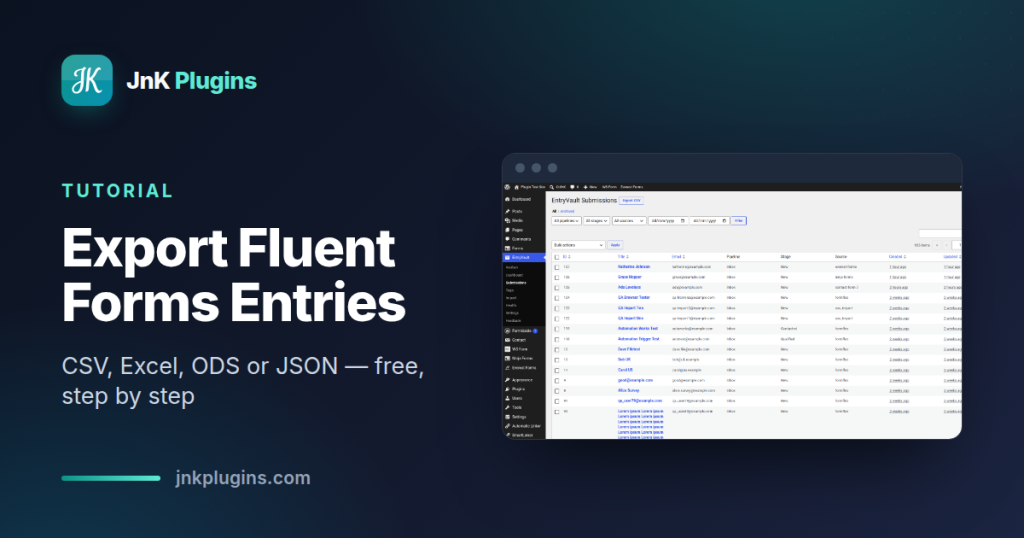
Fluent Forms is one of the better-behaved form plugins when it comes to your data: it stores every submission in the WordPress database, and — unlike a lot of competitors — it lets you export those entries for free, in four different formats, without buying Pro. If you just need this month’s submissions in a spreadsheet, you’re a couple of clicks away.
This guide walks through the built-in export step by step, covers the formats and filters you get, and is honest about where the built-in tool stops — including what to do when entries from Fluent Forms are really leads and you want them on one board next to entries from every other form on your site. (Full disclosure up front: the plugin we recommend for that last part, EntryVault, is our own — the relevant features here are all in the free tier, so judge it on its merits.)
How to export Fluent Forms entries (built-in, free)
Fluent Forms’ export lives on the entries screen and works the same in the free and Pro versions. Here’s the whole process:
Step 1 — Open the entries for the form you want
In your WordPress dashboard, go to Fluent Forms → Entries. You can also get there from Fluent Forms → All Forms, hovering a form and clicking Entries, or via the Entries tab in the form editor’s top bar. Either way you land on a table of submissions for a specific form.
Step 2 — Filter down to the entries you actually need
Before exporting, narrow the list if you don’t want everything. Fluent Forms lets you switch between all entries, favourites only, or unread submissions, pick a date range, and search by name, email, or submission ID. Whatever the table is showing is what the export will contain, so this is where you scope it.
Step 3 — Hit Export and pick a format
Click the Export button on the entries screen and choose your file format. Fluent Forms offers four:
| Format | Best for |
|---|---|
| CSV | The universal option — imports cleanly into Google Sheets, CRMs, and email tools. |
| Excel (.xlsx) | Handing a ready-to-open workbook to a colleague; keeps column typing tidier than CSV. |
| ODS | LibreOffice / OpenOffice users who’d rather skip Microsoft formats. |
| JSON | Developers piping entries into scripts, migrations, or another system’s API. |
The file downloads immediately with one row per submission and one column per form field. That’s it — no add-on, no upgrade prompt. Credit where it’s due: plenty of form plugins lock export behind a paid tier, and Fluent Forms doesn’t.
Step 4 (optional) — Importing entries back in
The entries dashboard also has an Import Entries button in the top-right, which is handy if you’re migrating submissions between sites or restoring from a backup export. Match your file’s columns to the form’s fields and Fluent Forms pulls the rows in.
Where the built-in export falls short
For a one-off download, the built-in tool is genuinely good. The friction shows up when exporting becomes something you do because your workflow lives in spreadsheets — usually a sign the workflow is missing, not the export. Three specific limits:
- Export is scoped to one form at a time. The entries table — and therefore the export — is tied to a single form. Sensible enough (a contact form and a quote form have different columns), but if you run six forms, “get me everything from last week” means six exports and some spreadsheet stitching.
- It can’t see beyond Fluent Forms. Most real sites aren’t single-plugin. If checkout enquiries come through one builder, a survey through another, and the main contact form through Fluent Forms, no amount of exporting gives you one combined view — each plugin only knows about its own entries.
- A spreadsheet is a snapshot, not a pipeline. The moment the file downloads it starts going stale. There’s no status on each row, no owner, no record of who replied — so teams end up maintaining a “leads” sheet by hand, re-exporting weekly, and de-duplicating forever.
If none of that describes you — you export quarterly for reporting and that’s the end of it — stop here, the built-in tool is all you need. If it does sound familiar, read on.
One board for every form on the site (including Fluent Forms)
This is where our own plugin comes in, so take the disclosure as given: EntryVault is built by us at JnK Plugins, and it’s free to download from us.
EntryVault doesn’t replace Fluent Forms — your forms, notifications, and integrations stay exactly as they are. It listens through each form plugin’s own hooks and captures every submission into one unified board. It auto-detects Fluent Forms and loads the adapter with zero configuration, and it does the same for sixteen other builders: Contact Form 7, WPForms, Gravity Forms, Forminator, SureForms, Ninja Forms, Formidable, WS Form, Everest Forms, Trinity Forms, Jetpack Forms, MetForm, Kadence Forms, Otter Forms, Spectra Forms, and Elementor Pro forms.
On the export question specifically, the free tier gives you:
- CSV export across all forms and all builders at once — or a filtered slice — from one Submissions screen. No per-form stitching.
- CSV import, so the entries you’ve already exported from Fluent Forms (or anywhere else) can be pulled onto the same board instead of living in old spreadsheets.
- A single-pipeline Kanban board with owners — drag an enquiry from New to Contacted to Won and assign it to a teammate, which for most small teams removes the reason they were exporting to a spreadsheet in the first place.
The paid tier exists, and it’s the CRM-ish layer: automations, third-party integrations, multiple pipelines, and IMAP reply sync so email replies attach to the right entry. None of that is required for capture, the unified board, or import/export — those are free forever.
The honest framing: Fluent Forms’ own export is decent, and if Fluent Forms is your only form plugin and entries are just records, you may never need more. EntryVault earns its slot when entries are leads and they arrive from more than one form — or more than one plugin — and you want one place to see and work all of them. For a broader comparison of tools in this space, see our round-up of the best WordPress form entry management plugins, and if you’re weighing storage and export options across every builder (not just Fluent Forms), the umbrella guide to storing and exporting WordPress form entries covers the whole landscape.
Quick comparison
| Fluent Forms built-in export | EntryVault (free) | |
|---|---|---|
| Cost | Free | Free |
| Formats | CSV, Excel, ODS, JSON | CSV (export and import) |
| Scope | One form at a time | All forms, all 17 supported builders |
| Other form plugins | No | Yes — CF7, WPForms, Gravity Forms, and more |
| Status / pipeline on entries | No | Kanban board with owners |
Rule of thumb: export from Fluent Forms when you need a file. Reach for a unified board when you need a workflow — and you find yourself exporting on a schedule to fake one.
Frequently asked questions
Can the free version of Fluent Forms export entries?
Yes. Entry export is included in the free version of Fluent Forms — go to Fluent Forms → Entries, filter the submissions you want, and click Export. Unlike many form plugins, Fluent Forms does not lock export behind its Pro tier.
What formats can I export Fluent Forms entries to?
Fluent Forms exports entries to four formats: CSV, Excel (.xlsx), ODS, and JSON. CSV is the safest choice for spreadsheets and CRMs, while JSON suits developers moving data into scripts or another system.
How do I see entries from all my forms in one place?
Fluent Forms’ entries screen and export work one form at a time, so for a combined view use a unified entry manager like the free EntryVault plugin. It captures submissions from Fluent Forms and sixteen other builders into a single board with cross-form CSV export and import.
Where is the export button in Fluent Forms?
On the entries screen. Go to Fluent Forms → Entries, or hover a form under All Forms and click Entries, and the Export button sits on that table. There is no separate export page — the export always acts on the entries of whichever form you are currently viewing.
Can I export only some Fluent Forms entries?
Yes, and this is the step people skip. Whatever the entries table is currently showing is exactly what the export contains, so scope it first: switch between all, favourites or unread submissions, set a date range, or search by name, email or submission ID. Then click Export.
Can I import entries back into Fluent Forms?
Yes. The entries dashboard has an Import Entries button in the top right, which is useful when you are migrating submissions between sites or restoring from a backup export. Match your file’s columns to the form’s fields and Fluent Forms pulls the rows in.
Related reading
- How to export Contact Form 7 entries to CSV — exporting from a form plugin with no built-in storage