JnK Plugins
How to Export Contact Form 7 Entries to CSV (2026)
Contact Form 7 is the most-installed form plugin in the WordPress repository, and it has one structural quirk that surprises every new user: it doesn’t store submissions at all. It formats an email, sends it, and forgets. So if you’re trying to export Contact Form 7 entries to CSV, the honest first question is: what has been saving them for you?
This guide assumes you already have a storage add-on running — Flamingo or EntryVault, most likely. If you don’t, start with does Contact Form 7 store data? first, because there is nothing to export until something is saving entries. For the wider picture across every form plugin, our umbrella guide to storing and exporting WordPress form entries covers the landscape.
Why CF7 exports are fiddlier than other form plugins
If nothing is storing your submissions yet, this is the wrong page — start with saving Contact Form 7 submissions to the database and come back once you have entries to export. And if what you actually want is to move those entries into another form plugin rather than into a spreadsheet, see importing Contact Form 7 entries into Gravity Forms.
Gravity Forms and Fluent Forms own their own data, so they ship their own export screens — we’ve documented both (Gravity Forms, Fluent Forms). Contact Form 7 owns nothing, so your export options are entirely determined by the add-on doing the storing. Change the add-on and you change the export.
The second wrinkle is volume. Sites that have been collecting CF7 entries for years accumulate tens of thousands of rows, and asking a budget host to assemble all of them into one file in a single request is how you meet a 504 Gateway Timeout or a blank white screen. The reliable fix is not a magic plugin — it’s exporting less at a time.
Method 1: Exporting with Flamingo
Flamingo is the official companion plugin, written by Contact Form 7’s own author, and it’s what most CF7 sites end up using.
- Go to Flamingo → Inbound Messages.
- Select the messages you want, or leave the selection empty to take everything.
- Use the export control at the top of the screen and download the generated CSV.
Scope the list before you export it. The export honours what the screen is filtered to, so use the controls above the table first: the channel dropdown narrows to a single CF7 form, the month dropdown narrows by month, and the search box filters by text. Flamingo’s exporter reads those same parameters, so a filtered list produces a filtered CSV. What it does not offer is an arbitrary date range — you get whole months. On a very large archive, exporting month by month is what keeps the request inside your host’s limits.
Method 2: Exporting with EntryVault
Disclosure first: EntryVault is our plugin. You can install the free version, so you can check this in five minutes rather than take our word for it.
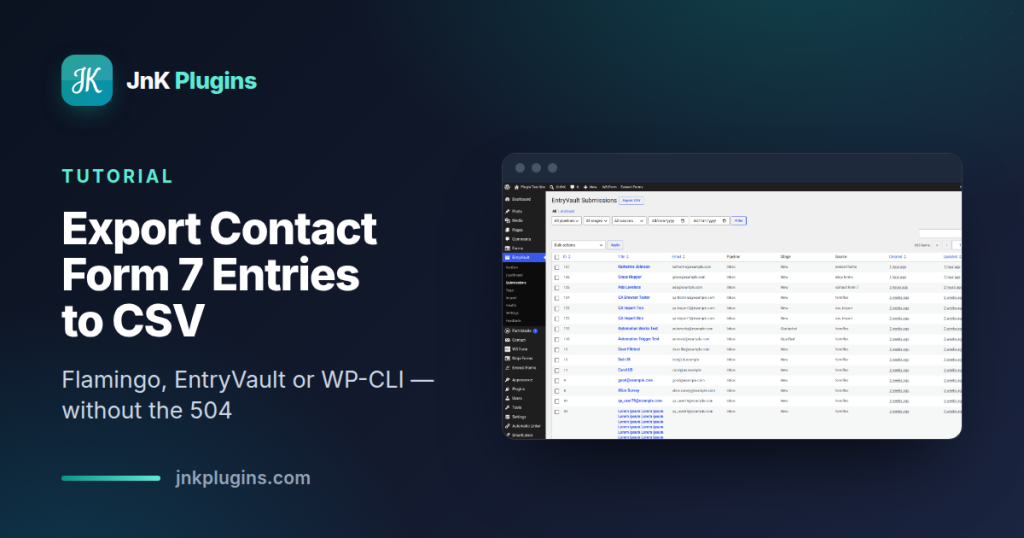
The thing that matters for exports is that the export follows whatever you’ve filtered on screen — the CSV you get is exactly the rows you’re looking at, not the whole table.
- Go to EntryVault → Submissions.
- Narrow the view: filter by source (Contact Form 7, if you run several form plugins), by a date range, by status, or with a search term.
- Check that the list on screen is the data you actually want.
- Click Export CSV.
Because the filters are carried into the export, “last quarter’s CF7 leads” is a genuinely small file rather than a full-table dump — which is what keeps the request inside your host’s limits. If a single export still struggles on a very large archive, split it: export month by month and concatenate the CSVs locally.
Method 3: WP-CLI, when the browser won’t cooperate
If the site is big enough that any browser-driven export fails, take the browser out of the loop. Flamingo stores inbound messages as a custom post type, so a WP-CLI query can page through them server-side with no HTTP timeout to worry about:
wp post list --post_type=flamingo_inbound --posts_per_page=500 --format=csv
You’ll get post-level columns rather than nicely mapped form fields, so it’s a rescue route rather than a daily workflow — but it works on sites where nothing else will, and you can page through the whole archive without ever hitting a gateway timeout.
A better long-term answer
If you find yourself maintaining Contact Form 7 plus a storage add-on plus an export workaround, the stack is telling you something. Trinity Forms (ours, and a free form builder) stores every submission by default and gives you an Entries screen in the free version, with no add-on in the chain. Our CF7 alternatives guide weighs that switch honestly, including the reasons to stay put.
Frequently asked questions
Can Contact Form 7 export entries without a plugin?
No. Contact Form 7 never stores submissions, so there is nothing in the database for it to export. Any CSV export of CF7 data comes from a storage add-on such as Flamingo or EntryVault, and only covers entries submitted after that add-on was activated.
Why does my Contact Form 7 export time out?
Because the whole archive is being assembled in one request. Exporting thousands of entries at once can exceed your host’s PHP memory limit or maximum execution time, which surfaces as a 504 error or a blank page. Filter the export down to a single form or a date range, or page through the data with WP-CLI instead.
Can I export Contact Form 7 entries to Excel?
Not as a native .xlsx file. Both Flamingo and EntryVault produce CSV, which Excel and Google Sheets both open directly — save it as .xlsx from there if you need a true Excel workbook with formatting or multiple sheets.
How do I export Flamingo entries to CSV?
Go to Flamingo → Inbound Messages and use the Export button above the table. The export follows the screen’s filters rather than always taking everything: the channel dropdown limits it to one CF7 form, the month dropdown to one month, and the search box to matching text. There is no arbitrary date-range picker, so narrow by month if the archive is large.
Can I export Contact Form 7 entries for a specific date range?
Not an arbitrary range, but you are not stuck exporting everything either. Flamingo’s month dropdown limits the list to a single month and the export honours it, so month-by-month slices work and keep large exports inside your host’s limits. If you need a specific start and end date, or want to slice by status as well, that needs a tool with a real date filter such as EntryVault.
How do I export Contact Form 7 entries with WP-CLI?
Flamingo stores inbound messages as a custom post type, so you can page through them server-side with no HTTP timeout: wp post list –post_type=flamingo_inbound –posts_per_page=500 –format=csv. You get post-level columns rather than neatly mapped form fields, so treat it as a rescue route for very large archives rather than a daily workflow.
The bottom line
Exporting Contact Form 7 entries is really a question about your storage add-on, not about CF7. If a full export is timing out, the fix is smaller slices — narrow by channel or month in Flamingo itself, filter by form and date range in EntryVault, or page through with WP-CLI when the site is too large for the browser at all.