JnK Plugins
How to Save Contact Form 7 Submissions to the Database
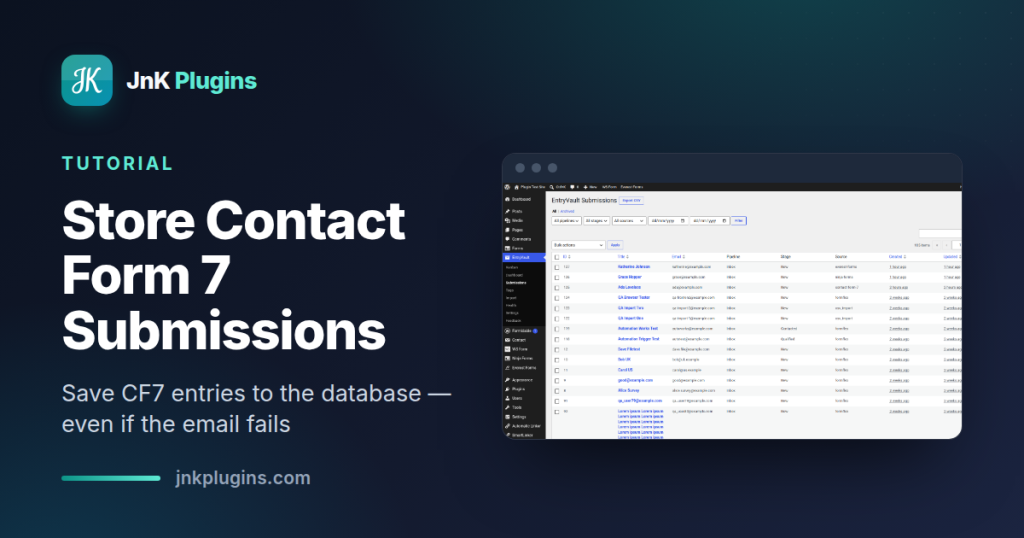
Contact Form 7 is the most-installed form plugin on WordPress — and one of the few that stores nothing by default. It emails each submission and then forgets it. If that email bounces, lands in spam, or gets deleted, the enquiry is gone for good.
The fix does not mean leaving CF7, and for most sites it does not mean paying for anything either. This guide covers the standard free answer first — Flamingo, written by Contact Form 7’s own author — then the specific cases where it runs out of road.
Why doesn’t Contact Form 7 save submissions?
By design. CF7 is a lightweight form renderer and mailer — it builds the form, validates input, and sends a notification email. It deliberately keeps no database of entries, which is why it stays small and fast. The trade-off is that every submission is only as reliable as your mail delivery, and you have no record to search, follow up on, or export.
The standard fix: Flamingo
Flamingo is free, on WordPress.org, and written by Takayuki Miyoshi — the author of Contact Form 7 itself. That matters more than it sounds, because the integration is built into CF7, not bolted onto it: Contact Form 7 ships a Flamingo module that pushes each submission across as it happens. There is nothing to connect.
Step 1 — Install Flamingo
From your dashboard go to Plugins → Add New, search for Flamingo, then install and activate. Leave Contact Form 7 exactly as it is.
Step 2 — There is no step 2
No settings, no API key, no per-form mapping. Submit a test entry on any CF7 form and it appears immediately. Your forms, notifications and integrations are untouched.
Step 3 — Read your submissions
Open Flamingo → Inbound Messages. Every submission since you activated the plugin is listed with its subject, sender and date, and each one opens to show the full field values. A second screen, Address Book, keeps a contact record per email address.

Step 4 — Filter, then export
Above the table are three controls worth knowing about, because the CSV export honours all of them rather than always taking everything:
- Channel — Contact Form 7 creates one channel per form, so this narrows the list to a single form.
- Month — a month dropdown, not an arbitrary date range.
- Search — plain text across the messages.
Set the filters you want, then click Export above the table. The mechanics of that CSV — what the columns look like, what to do when a very large archive times out, and the WP-CLI route when the browser will not cooperate — are covered separately in how to export Contact Form 7 entries to CSV. On a large archive, exporting month by month is what keeps the request inside your host’s limits.
Your lead survives a failed email — here is why
This is the part that actually earns Flamingo its place. Contact Form 7’s Flamingo module fires on the wpcf7_submit hook after the mail attempt, and it is handed the result. Rather than saving only on success, CF7 passes an explicit list of statuses it saves on:
spam,mail_sent, andmail_failed.
So a misconfigured SMTP setup, a bouncing inbox or a spam filter does not cost you the enquiry — the record is written either way. Spam is kept too, in its own view, so a false positive is recoverable rather than silently binned.
One job this page deliberately does not cover: moving stored CF7 entries into a different form plugin. That is a different problem with its own pitfalls, and it has its own guide — importing Contact Form 7 entries into Gravity Forms.
Where Flamingo stops
It is a safety net, and it is honest about being one. The limits are real and worth knowing before you assume it covers you:
- Contact Form 7 only. If the site also runs WPForms, Gravity Forms or Fluent Forms, their entries live in their own screens and Flamingo never sees them.
- No tags on messages. The address book tags contacts, but an inbound message carries only its channel. There is nothing to label a message with.
- No stages and no owners. There is no way to mark an enquiry as being handled, or by whom.
- Whole months, not date ranges. Fine for month-by-month exports, awkward if you need “the 12th to the 19th”.
- Nothing before you installed it. No storage plugin can recover submissions that were never written anywhere. Install it before you need it.
If none of those describe you, stop here. Flamingo is free, it is maintained by the same author as the form plugin, and it solves the problem in the title of this article.
When a second tool earns its place
Full disclosure: EntryVault is ours. It is worth adding for exactly the gaps above, and not otherwise:
- More than one form plugin. It captures CF7 plus sixteen other builders into one board, so you stop checking three separate screens. This is the main reason people use it.
- You need to work the entries, not just keep them. Tags, a real date-range filter, and a per-entry record of what happened.
- Filtered exports beyond a month. Filter by source, status or an arbitrary date range, then export exactly that.
Like Flamingo, it reads submissions through CF7’s own hooks — no form changes, no shortcodes. It captures on wpcf7_before_send_mail, before the email is attempted, which reaches the same outcome as Flamingo’s mail_failed case by a different route.
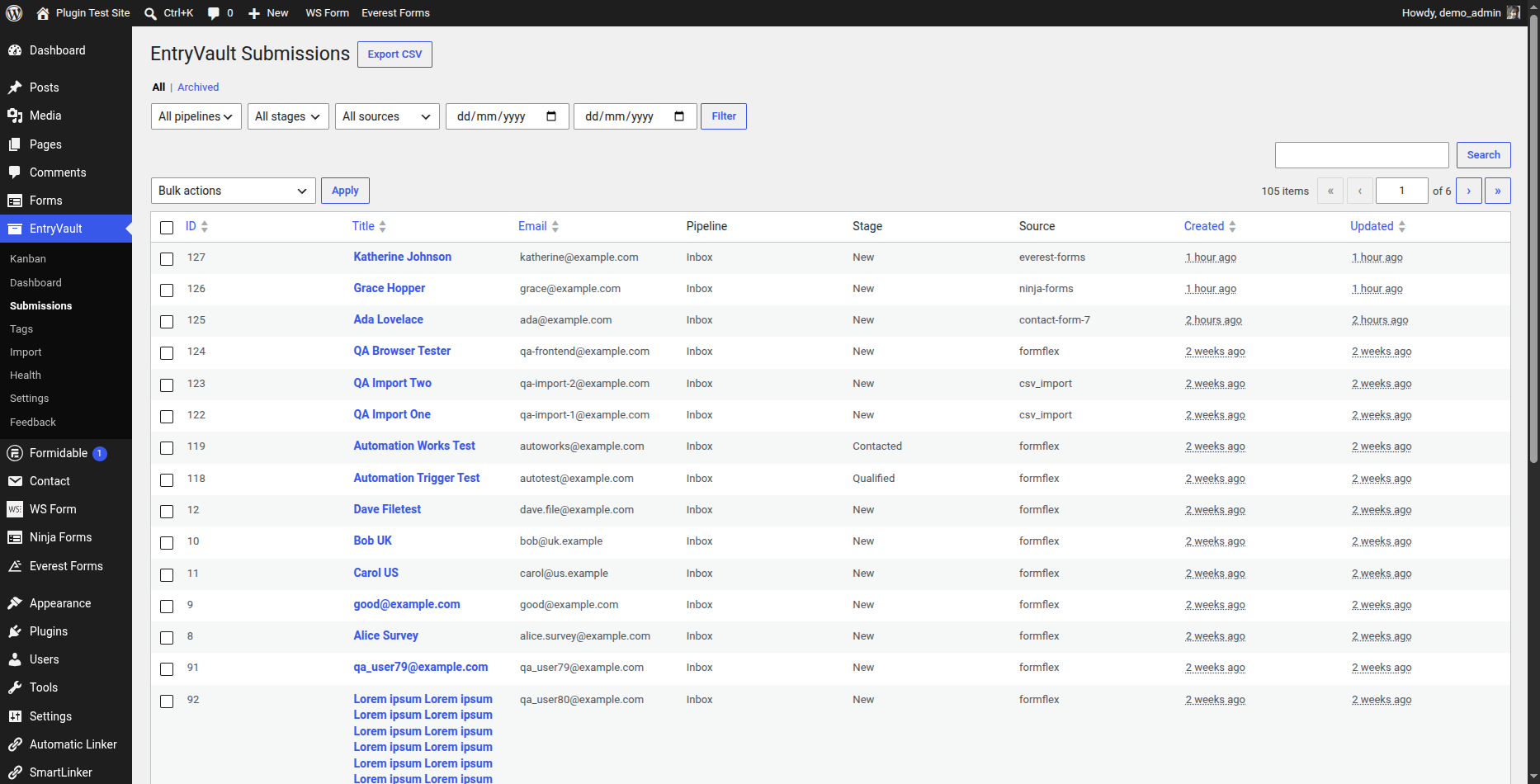
Contact Form 7 storage: the quick comparison
| Approach | Stores entries | Survives a failed email | CSV export | Multiple builders |
|---|---|---|---|---|
| CF7 alone | No | — | No | — |
| Flamingo (free) | Yes | Yes | Yes, filtered by form or month | CF7 only |
| EntryVault | Yes | Yes | Yes, any filter incl. date range | 17 builders |
For a fuller feature-by-feature look, see EntryVault vs Flamingo. If you would rather leave CF7 altogether for a builder that stores natively, our Contact Form 7 alternative guide weighs that instead.
The bottom line
Contact Form 7 does not store submissions, and that is a deliberate design choice rather than a bug. Install Flamingo and the problem is solved, for free, by the same person who wrote the form plugin. Reach for something else only when you have a second form plugin to unify, or you need to work the entries rather than simply keep them.
Frequently asked questions
How do I save Contact Form 7 submissions to the database?
Install Flamingo, which is free on WordPress.org and written by Contact Form 7’s own author. There is no configuration: Contact Form 7 ships a Flamingo module that pushes each submission across, so entries start appearing under Flamingo → Inbound Messages as soon as it is active. Your forms do not change.
Why doesn’t Contact Form 7 save submissions by default?
By design. Contact Form 7 is a lightweight form renderer and mailer — it builds the form, validates the input and sends a notification email, deliberately keeping no database of entries, which is part of why it stays small and fast. The trade-off is that every submission is only as reliable as your mail delivery.
What happens if the notification email fails?
With a storage plugin the entry is still saved. Contact Form 7’s Flamingo module fires on wpcf7_submit after the mail attempt and is passed an explicit list of statuses to save on: spam, mail_sent and mail_failed. So a bouncing inbox or a misconfigured SMTP setup does not cost you the enquiry. With plain CF7 and nothing storing entries, a failed email means the submission is gone.
Can I export Flamingo entries filtered by form or date?
Yes, and this is more capable than it looks. The Inbound Messages screen has a channel dropdown — Contact Form 7 creates one channel per form — plus a month dropdown and a search box, and the CSV export honours all three. What it does not offer is an arbitrary date range, so you get whole months rather than a specific start and end date.
Do I need to change my CF7 forms to store entries?
No. A storage plugin reads submissions through Contact Form 7’s own hooks, so there are no new fields to add, no shortcode changes and no per-form mapping. Your existing forms, notifications and integrations carry on exactly as they are.
When is Flamingo not enough?
Three cases. It only sees Contact Form 7, so a site running WPForms or Gravity Forms as well still has entries in separate screens. It has no tags on messages, no stages and no owners, so there is no way to record that an enquiry is being handled. And its date filtering is by whole month rather than an arbitrary range.
Related reading
- Does Contact Form 7 store data? — the short answer, and how to check what your site is saving
- Migrating form entries between plugins — taking stored CF7 entries with you to a new builder